TL;DR
- Modal windows in UI Builder — open any page in a modal; route inside; conditionally show/hide sections.
- External Scenario Connections — see all linked scenarios + API endpoints, navigate and edit faster.
- Object Path Visualization & URL sharing — highlight a specific object's execution path and share a pre‑filtered URL.
- MultiForm × ArrayLink — render ArrayLink as tables; inline edit and add rows.
- Socket redirects + stability — real-time redirects; more reliable connections.
- Quick App Switcher — jump between apps from the header with search.
- Chat component upgrades — richer customization; reply buttons instead of input.
- Lots of fixes & perf — see full list on the Roadmap.
🖼 Modal Windows in UI Builder
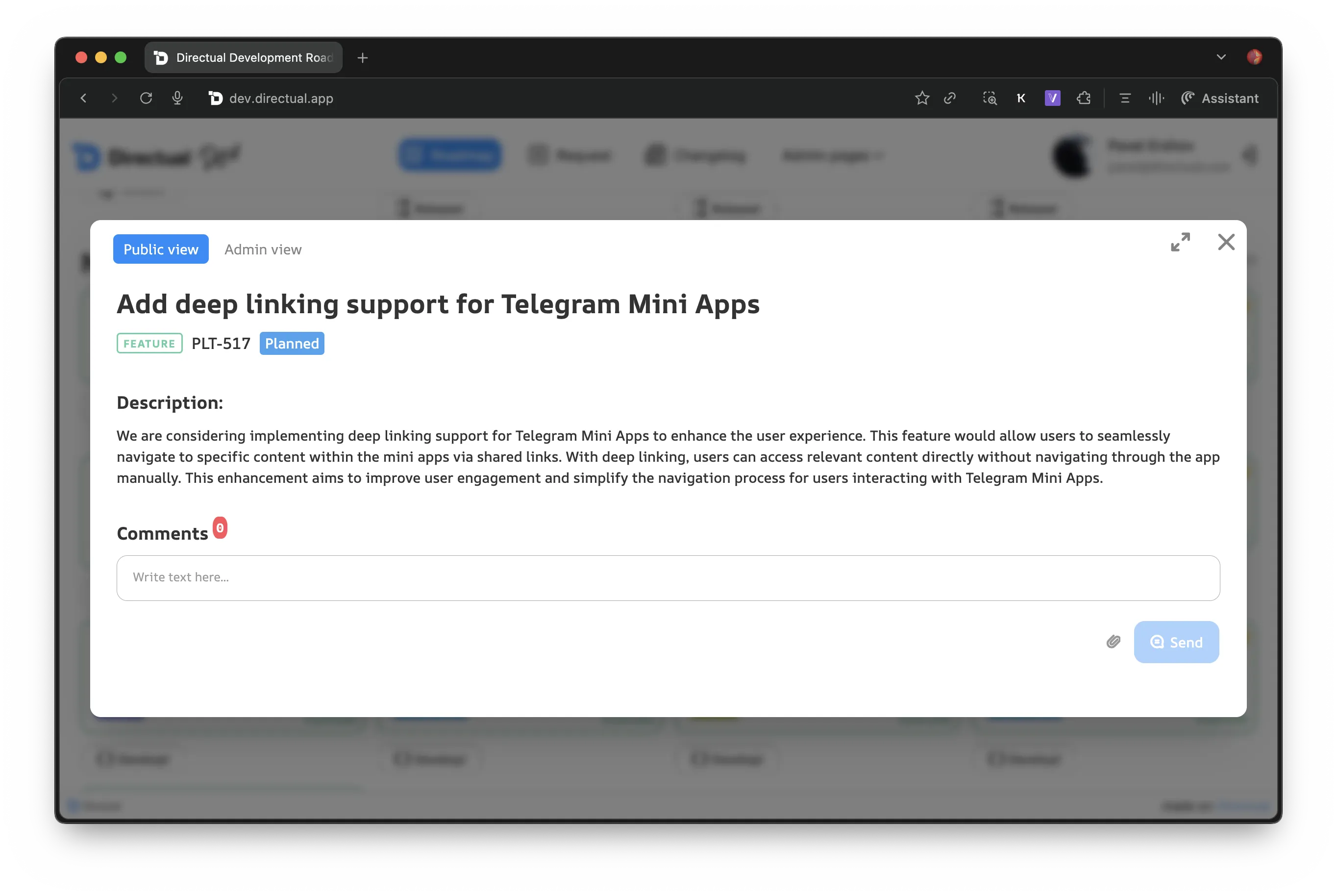
Open any page inside a modal window in your final web apps. Trigger from Multi‑form, Table, or Cards. Routing works inside modals (nested navigation supported). Page sections now support conditional display: hide in modals or show only in modals.
Why it matters
- Faster user flows with fewer page transitions.
- Less context switching; users stay focused.
- More flexible layouts for internal tools and customer portals.
How to use
- Add an action (from Multi‑form/Table/Cards) → choose Open in modal.
- (Optional) Configure modal size/behavior.
- In the page editor, toggle section visibility rules for “in modal” / “not in modal”.
- Use regular routing inside the modal to navigate nested pages.
Great for: detail views, quick edits, approvals, side‑by‑side comparisons.
🔗 External Scenario Connections
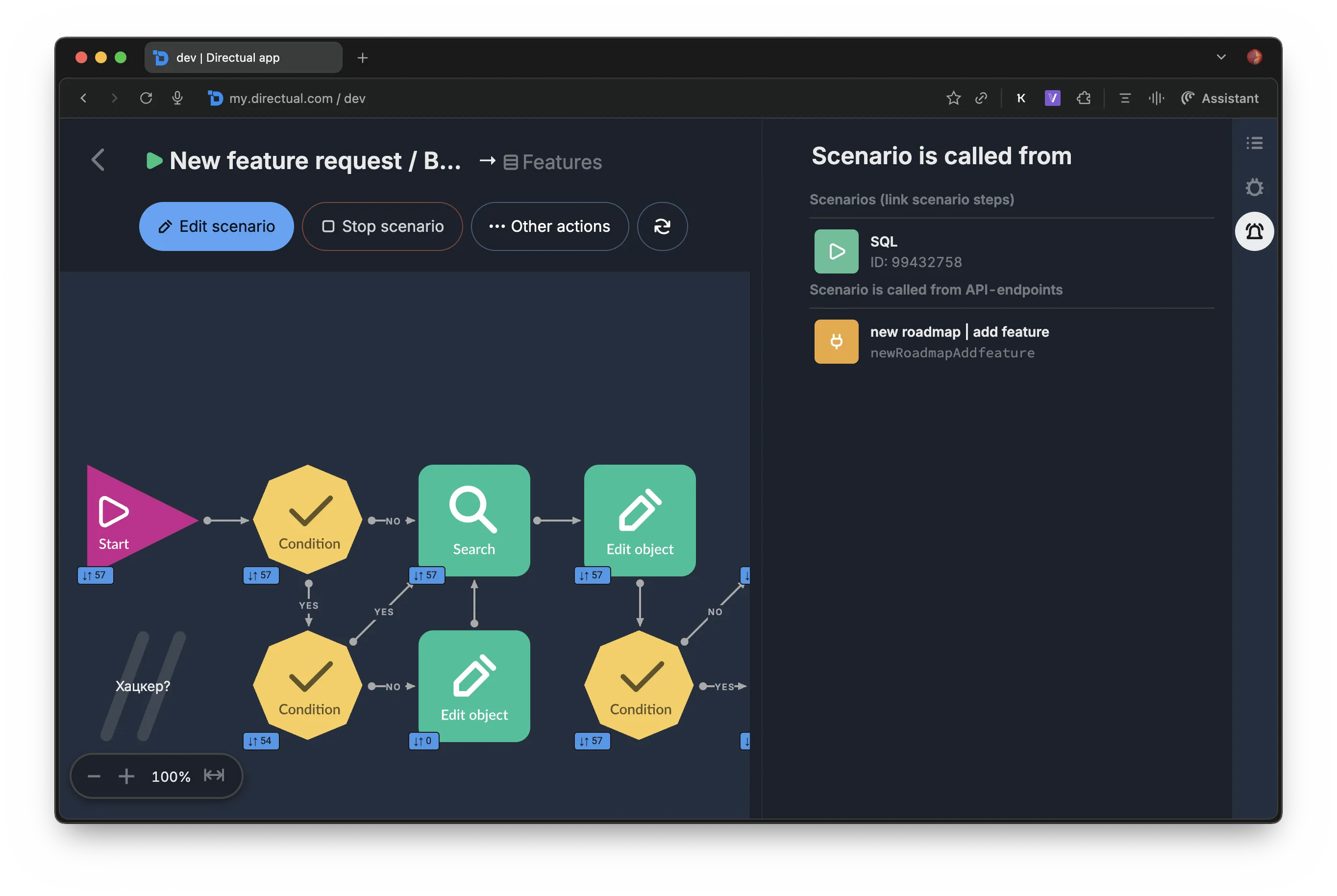
A comprehensive connections view in the Scenario Panel shows all scenarios and API endpoints that interact with the current scenario.
Features
- Linked Scenarios List — every scenario that calls or references the current one.
- API Endpoints List — all endpoints connected to the scenario.
- Interactive Navigation — click to jump directly to scenarios.
- Endpoint Management — open endpoint edit modal from the list.
- Duplicate Filtering — de‑duplication for a clean view.
- Loading States — smooth experience with proper indicators.
Benefits
- Understand dependencies at a glance.
- Debug faster — trace execution flows with fewer clicks.
- Work smarter — seamless navigation between related pieces.
- Manage APIs right from the scenario view.
How to use Open a scenario → Connections tab/panel → browse and navigate.
🔍 Object Path Visualization
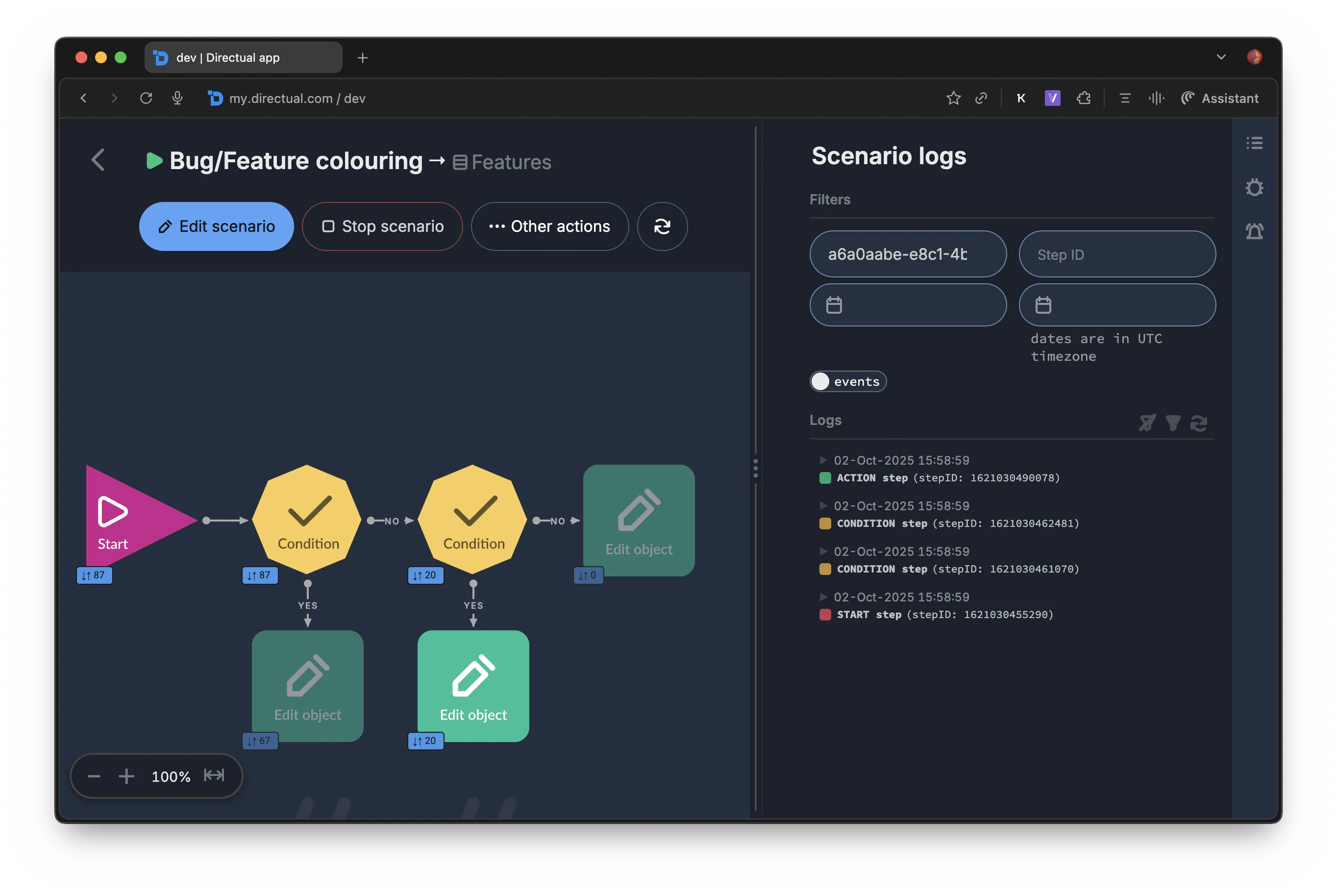
Follow any object’s journey through a scenario with object‑based step highlighting.
Key features
- Object ID filtering — enter an object ID in the logs panel to highlight only the steps it passed.
- Visual step highlighting — unrelated steps become semi‑transparent.
- URL parameter support —
?objectId=xxx auto‑applies the filter on load.
- Shareable links — copy/paste the URL to share the exact context.
- Seamless with step selection — plays nicely with
stepId filters.
Use cases
- Debugging — pinpoint where a specific object branched or failed.
- Collaboration — share exact execution context with teammates.
- Analysis — visualize flow patterns in production.
- Documentation — link reproducible examples in internal docs.
How to use
- Open scenario logs → paste Object ID in the filter.
- (Optional) Add
?objectId=your_id to the URL and reload.
- Share the link with teammates.
📋 MultiForm × ArrayLink
Render ArrayLink fields as tables inside MultiForm.
What you can do
- Inline edit objects from the list.
- Add new linked objects without leaving the form.
- Keep data structured and validated.
Great for: orders with line items, tasks in projects, participants in events, attributes on products.
How to use
- In MultiForm, add a field bound to an ArrayLink.
- Choose Table view and configure visible columns.
- Enable inline edit and add actions as needed.
🌐 Socket Redirects + Stability
- Sockets can redirect users to the right place in real time.
- Connection stability significantly improved — fewer drops and retries.
Why it matters
- Reactive UX for live actions (onboarding steps, access changes, stateful approvals).
- Fewer refreshes, less latency between server events and UI.
How to use Configure your real‑time events to emit the target route; the client will navigate instantly.
🧭 Quick App Switcher (Header)
A fast dropdown in the header to switch between apps.
Features
- Instant switching without returning to the workspace.
- Search by app name to jump faster.
- Stays out of the way; keeps you in flow.
Great for: agencies, studios, freelancers, and teams running multiple apps.
💬 Chat Component Enhancements
- More customization options for agent‑driven chats.
- Reply buttons as an alternative to the free‑text input.
Why it matters
- Guide users with predefined actions.
- Build structured conversational flows for AI agents and support bots.
How to use Open your Chat component settings → configure layout and reply button sets.
🛠 Fixes & Performance
Lots of polish under the hood this month: stability, speed, and quality of life.
- Faster UI loads in heavy scenarios and big forms.
- Smoother transitions and improved error states.
- Misc. bug fixes across builder and runtime.
→ Full changelog: Roadmap
Cheers!